Blog
Label Artwork Guidelines
File formats, CMYK and Pantone, bleed, safe zone, cut lines, fonts and foil layers. Includes a final checklist for print-ready label files.
Etiket.az team 9 min read
These label artwork guidelines show you how to prepare a file we can print without delays or surprises. In short, keep your logo and text in vector form and set colors in CMYK or Pantone. Then add 2–3 mm of bleed on every side and convert all fonts to outlines.
Since 2014 we have checked customer files every day, so this guide reflects real problems, not theory. It applies to stickers, roll labels, hang tags and woven labels. If your file is ready, upload it through our quote form.
Print-Ready Label Files: Accepted Formats
A vector file is the safest choice for print. Vector graphics use mathematical paths, so your logo stays sharp at any size. A raster image (JPG or PNG), however, consists of pixels, and its edges turn jagged when you enlarge it. Therefore, always send your logo, text and cut line as vectors.
The table below lists the formats we accept. A PDF exported for print works best, because it keeps fonts, colors and dimensions together.
| Format | Software | What to check |
|---|---|---|
| Illustrator, CorelDRAW, InDesign, Affinity | Export for print (PDF/X-1a or PDF/X-4) with bleed | |
| AI | Adobe Illustrator | Outline fonts, embed linked images |
| EPS | Older universal format | Flatten transparency, check color mode |
| CDR | CorelDRAW | Note the version, convert text to curves |
| SVG | Web and logo editors | Vector logos only, colors in CMYK |
| JPG, PNG, TIFF | Photo editors | Photos only, 300 dpi at actual size |
For CorelDRAW files, note the version, since newer files may not open in older software. When in doubt, attach a PDF copy too.
Color Mode: CMYK and Pantone
Your monitor displays color with light, in RGB. A printing press, on the other hand, uses four inks: cyan (C), magenta (M), yellow (Y) and black (K). As a result, a bright green or orange on screen can print slightly duller. Before you send the file, convert every element to CMYK and check the colors once more.
If an exact brand color matters, give us the Pantone number. The Pantone color system assigns a code to each shade, so designer and printer mean the same color. For woven labels the code matters even more, because we match the thread to it. On paper and film, we reach Pantone colors with a spot ink or a close CMYK match.
Black and Fine Details
Use 100% black (K) only for small text, barcodes and thin lines. A four-color black can leave a halo on small letters. For large black areas, in contrast, a rich black such as C40 M30 Y30 K100 looks deeper. Also keep total ink coverage under 300%, or the ink dries slowly.
Logos and Images: Vector and 300 dpi
The logo is usually the key element of a label, so we ask for it in vector form. Photos and textures need at least 300 dpi at actual print size. Web and social media images are often 72 dpi, so they look pixelated in print.
Only have a JPG logo? Send the largest, cleanest version you have. We can usually redraw a simple logo as a vector. A complex illustration, however, may need separate design work, and we tell you before we start.
Label Bleed and Safe Zone: Avoid Cutting Errors
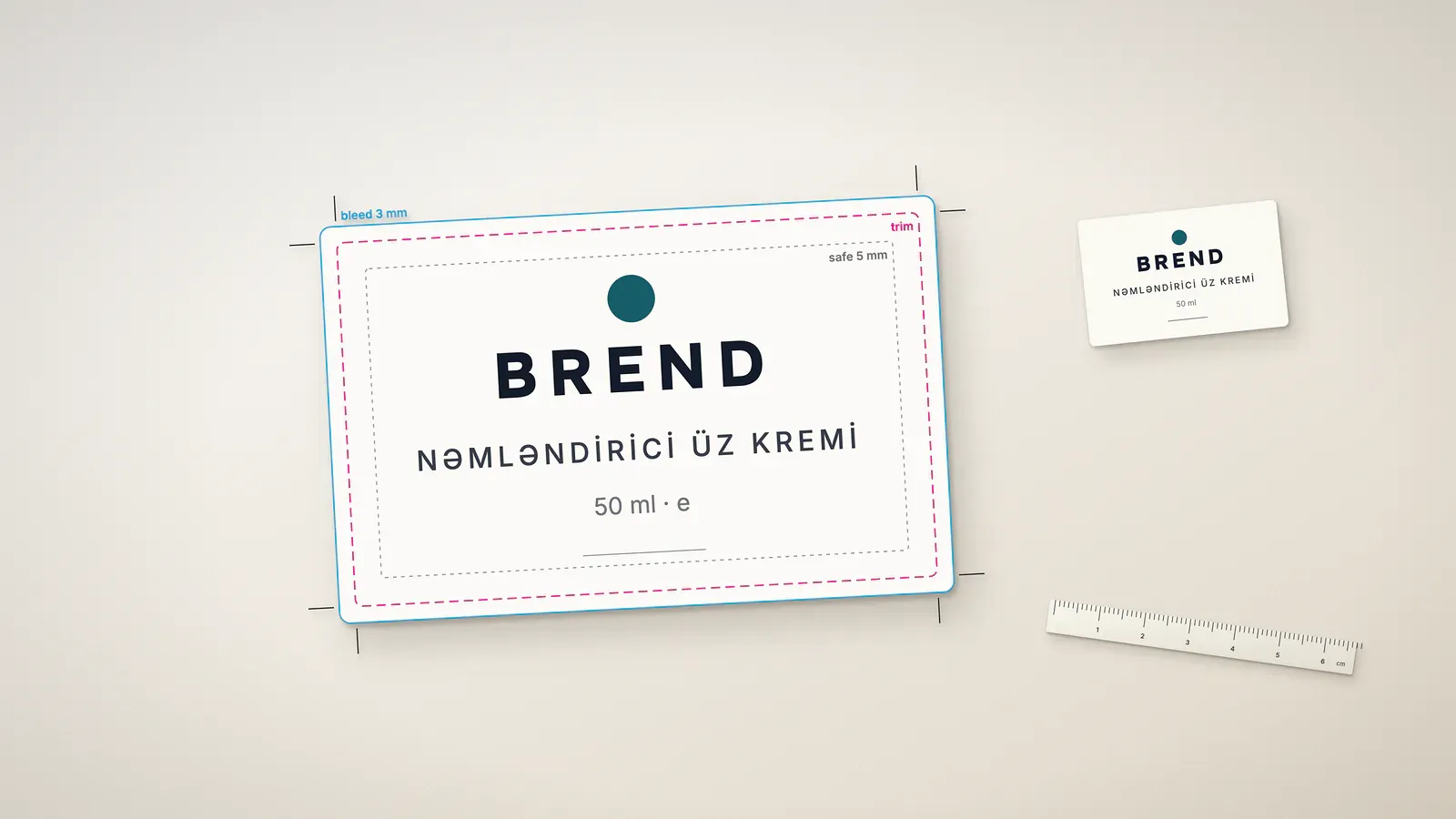
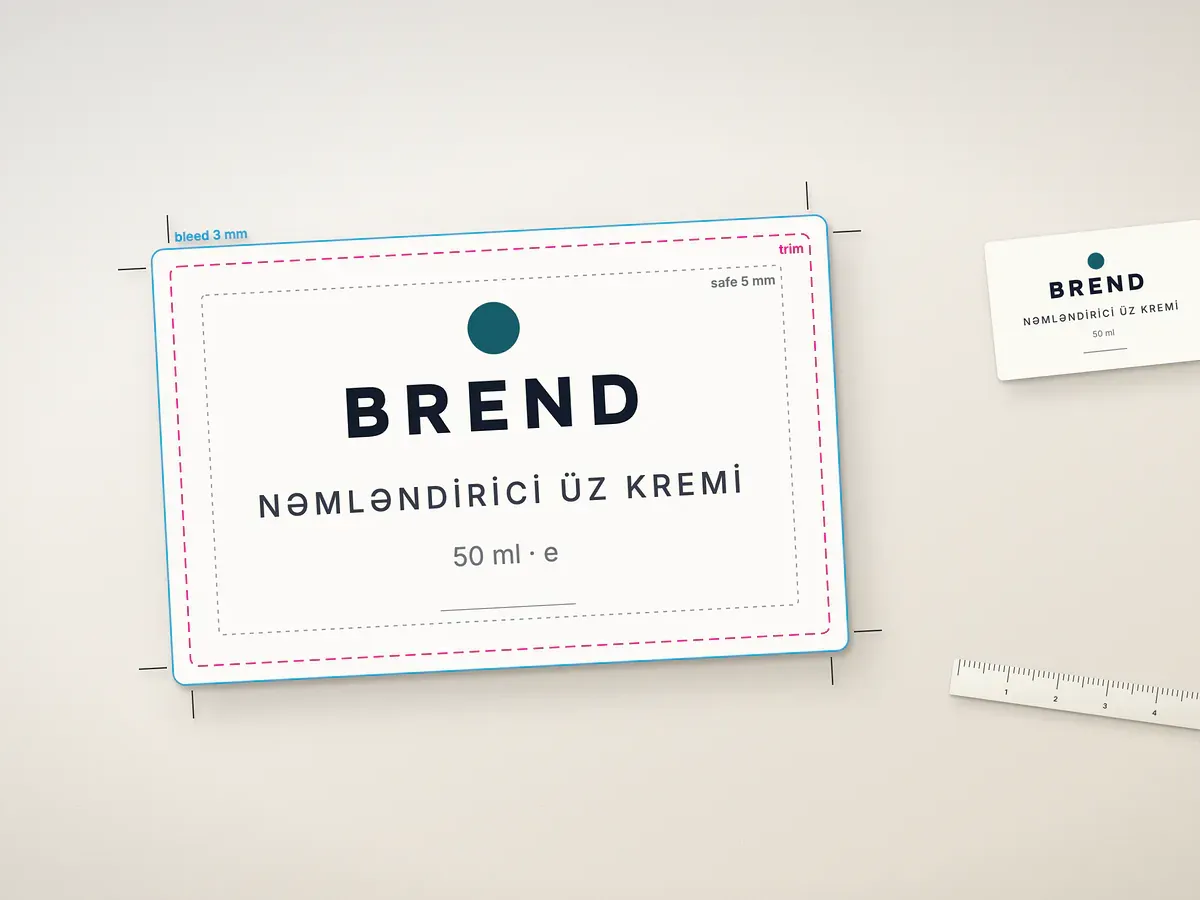
During cutting, the blade can shift by a millimeter or so. This is normal production tolerance, not a defect. To avoid a white sliver at the edge, extend the background and images 2–3 mm past the trim line. We call this extra area bleed.
The safe zone works the other way: it is the area inside the trim line. Keep text, logos and barcodes at least 2–3 mm inside the trim. Otherwise, even a small shift can clip a letter or part of a code.
Label bleed and safe zone at a glance
- Bleed
- 2–3 mm on every side
- Safe zone
- 2–3 mm inside the trim line
- Cut line
- Separate layer, named spot color (for example, CutContour)
- Hang tag hole
- 3 or 5 mm, marked in the artwork
- Woven labels
- No bleed needed, minimum width 15 mm
- Raster images
- At least 300 dpi at actual size
Draw the cut line on its own layer as a thin stroke in a named spot color. On die-cut stickers and hang tags, it defines the cutting die. If that feels tricky, describe the shape and we can draw the contour. On hang tags, also mark the hole and keep 3–4 mm free around it.
Label Artwork Guidelines for Fonts and Text
The print shop's computer may not have your fonts. If so, the software swaps in another font, and the text shifts. So convert all text to outlines before you send the file: Create Outlines in Illustrator, Convert to Curves in CorelDRAW. If you export a PDF, embed the fonts as well.
Pay special attention to Azerbaijani letters. Many decorative Latin fonts lack “ə”, and some also lack “ğ” and “ı”. The software then borrows them from another font, so one word ends up in two typefaces. After outlining, proofread the ingredients, address and manufacturer details letter by letter.
Watch the minimum type size as well. On paper and film labels, we recommend about 6 pt for regular text. For white text on a dark background, use 7–8 pt in a bold weight. On woven labels the thread forms each letter, so thin serif fonts often disappear.
Barcodes and Mandatory Information
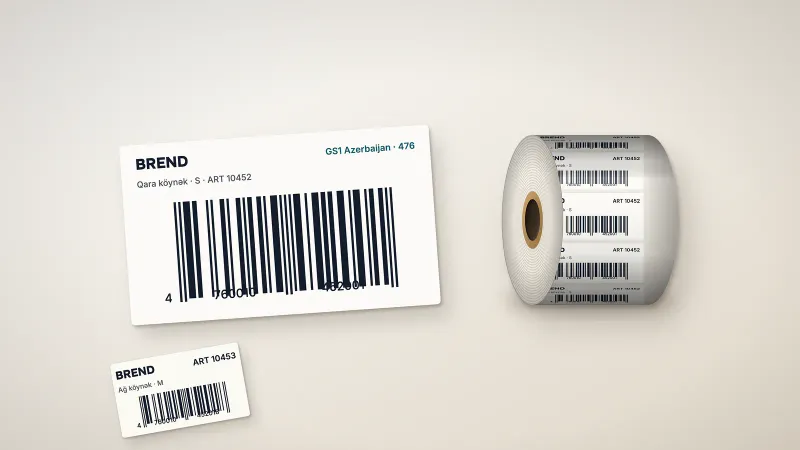
Place the barcode as a vector object in 100% black. Leave a clear quiet zone on both sides and do not shrink it too much, or a scanner may fail to read it. The brand owner obtains barcode numbers from GS1 Azerbaijan, and our barcode labels page explains the process.
Do not leave mandatory text, such as ingredients and storage conditions, until the end. It usually takes up the most space and can change the whole layout. For garments, meanwhile, care symbols fit better on separate care labels.
Separate Layers for Foil, Varnish and White Ink
Every special finish needs its own layer. For example, if a hang tag has gold foil, embossing or spot varnish, draw each effect on a separate layer. Use a 100% spot color and clear names: “Foil”, “Emboss”, “Varnish”. These layers should contain no shadows, gradients or transparency.
If a clear sticker needs a white underlay, put it on a separate layer as well, since light colors almost vanish on clear film. We confirm this option in your quote. In addition, avoid very thin lines under foil, because foil may not transfer fine details.
Proof and Approval
Once we receive your file, we check size, bleed, color mode, fonts and layers. If we spot a problem, we write to you and suggest a fix. Then we send a digital PDF proof. We start production only after your written approval.
Read the proof carefully: text, dimensions, colors, barcode and label orientation. Screen colors can differ slightly from print. If color is critical, give us a Pantone number or a sample from a previous run.
Final Check for Print-Ready Label Files
- The file is vector: PDF, AI, EPS, CDR or SVG.
- Colors are in CMYK, with Pantone codes for brand colors.
- There is 2–3 mm of bleed on every side.
- Text and logos sit 2–3 mm inside the trim line.
- Fonts are outlines, and “ə”, “ğ”, “ı” look right.
- Images reach 300 dpi at actual size.
- Cut line, foil and varnish sit on separate layers.
- The file name shows product, size and version.
How to Send Print-Ready Label Files
If everything on the list checks out, your print-ready label files can go straight to us. Sending them takes four steps.
Step 1: Upload the file
Attach your artwork to the <a href="/en/get-a-quote">quote form</a> or email it to [email protected].
Step 2: Add the details
Tell us the label type, size, quantity, material and target date.
Step 3: File check and quote
We send a quote within 24 hours on business days, with any file issues noted.
Step 4: Approval and production
You approve the proof, then we start production and confirm the ready date.
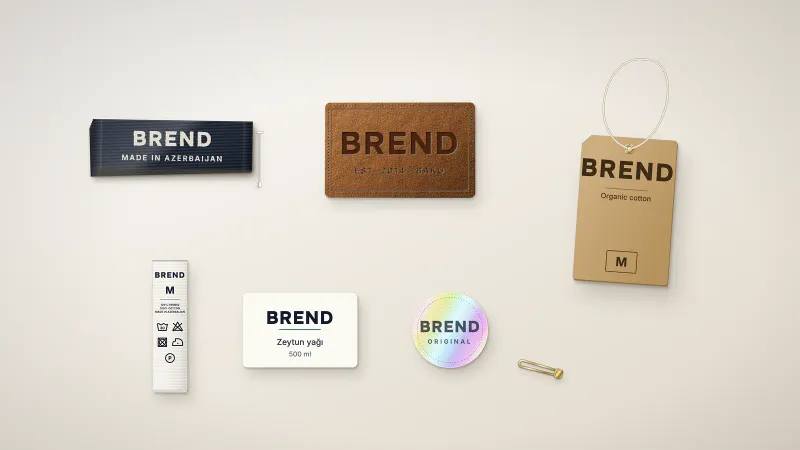
Artwork needs vary a little by product. For example, the cut line matters most for custom stickers, while roll labels also need a winding direction. For woven labels, thread colors and the fold type come first. Our product labels section covers every self-adhesive option.
Label Artwork Guidelines: Common Questions
Which file format should I send?
What if I only have a JPG logo?
Do I approve a proof before printing?
Can you help if I do not have a designer?
What should a roll label file include?
What file do you need for woven labels?
Send your artwork for a quote
Upload your print-ready label files, and within 24 hours on business days we will send a quote plus notes on your artwork.
Related product
Sticker Printing in Baku
Want to order the label discussed in this article?